Plan View
The Plan View module allows users to access the floor plan that corresponds to models available in the respective project. Within the loaded floor plan, users can measure dimensions and simultaneously view both the 3D model and floor plan in split view mode.
Follow the below steps to load the floor plan in the viewer,
- Select Projects from the side Navigation and choose the required Project to access models
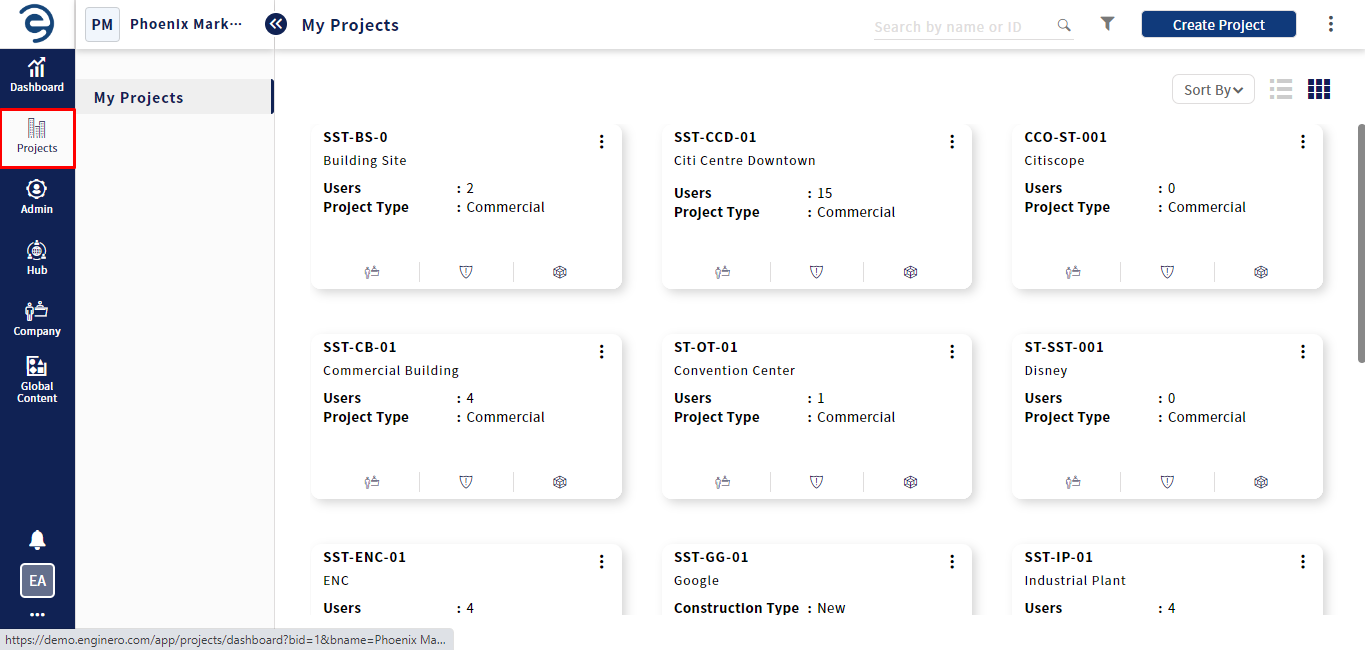
Floor Plan
- Select Model Viewer module from the inner side Navigation and click on the Plan View option to access the floor plan that corresponds to the models available in the respective project
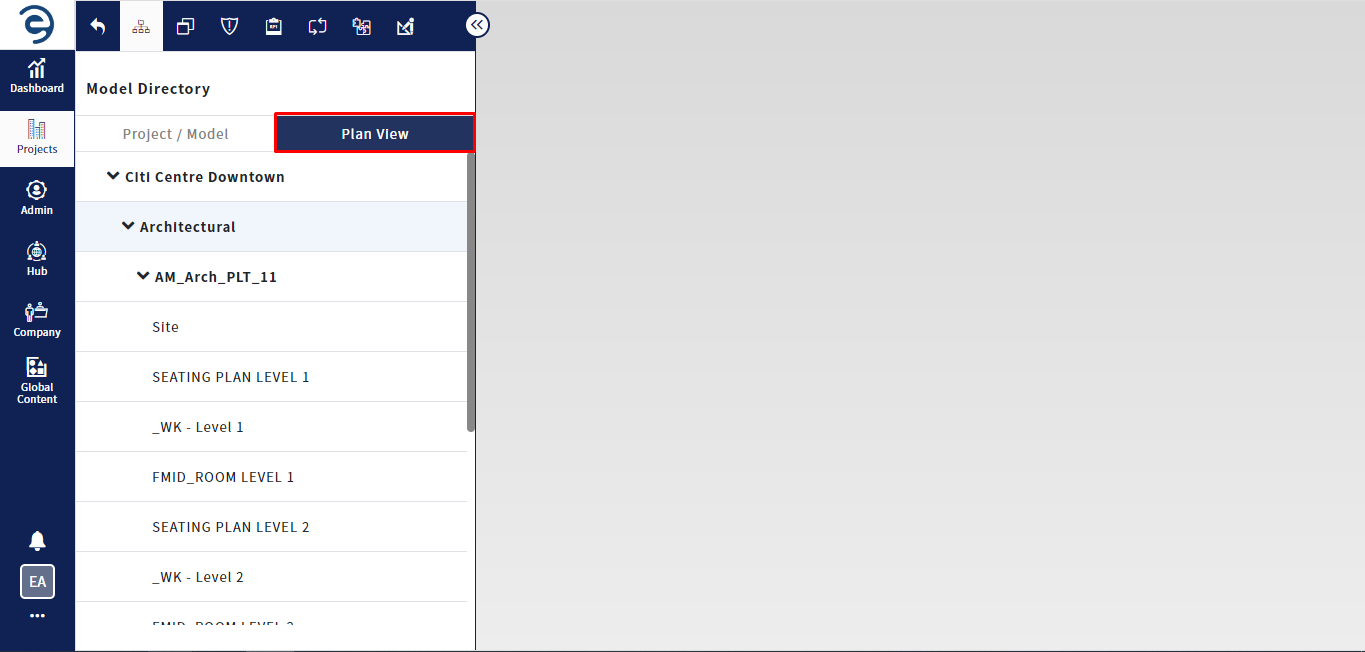
Floor Plan (Cont.)
- Hover over the desired floor plan and click the Load button to load the floor plan in Viewer
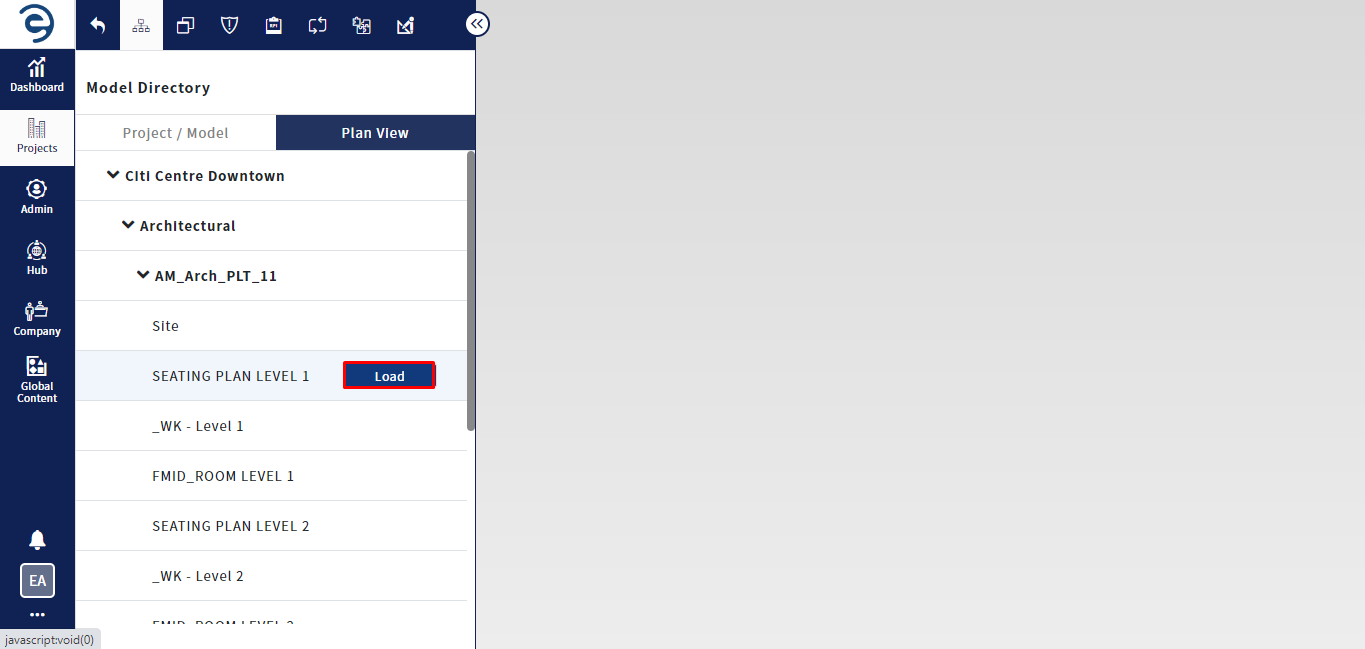
Floor Plan (Cont.)
- Following options will be presented once the floor plan is loaded in the Viewer
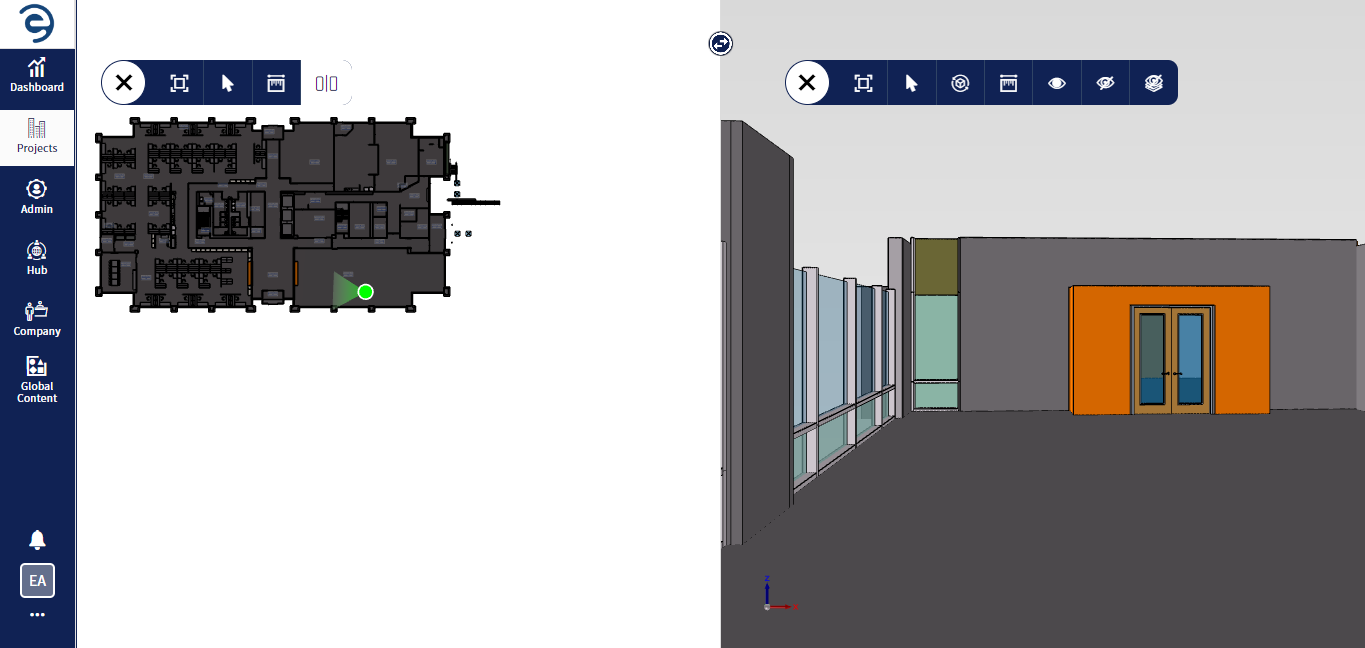
Floor Plan (Cont.)
|
SI: No |
Tool |
Description |
|
1 |
Collapse/Expand button |
Collapse the viewer navigation panel to maximize the workspace for floor plan and expand it to access the navigational panel |
|
2 |
Fit to Screen |
Sets the zoom level to whatever it needs for the model to fit entirely within the viewable area of the viewer window |
|
3 |
Measurement |
Measure dimensions within the floor plan using Point to Point, Edge to Edge, Edge to Point, and Edge Measurement methods |
|
4 |
Split up |
Simultaneously view both the 3D model and floor plan in split view model, and navigate through them using the point navigator |
Options available in the Floor plan Viewer
Created with the Personal Edition of HelpNDoc: Maximize Your CHM Help File Capabilities with HelpNDoc